You just ordered your first dedicated server, or maybe you are upgrading your existing setup and the hosting provider asks you a question that stops you cold: “Which RAID configuration would you like?” Suddenly you are staring at options like RAID 0, RAID 1, RAID 5, RAID 6, and RAID 10, and you have no idea which one to pick or what any of them actually mean for your server.
Do not worry. You are not alone in feeling confused by this. RAID is one of those topics that sounds far more complicated than it actually is once someone explains it in plain language. And making the right choice here is genuinely important, because the RAID configuration you pick will directly affect how fast your server performs, how safe your data is, and how well your server recovers if a hard drive fails.
This guide is going to explain everything you need to know about RAID in simple, easy-to-understand terms so that by the end, you will know exactly which configuration is right for your specific situation.
What Is RAID and Why Does It Matter?
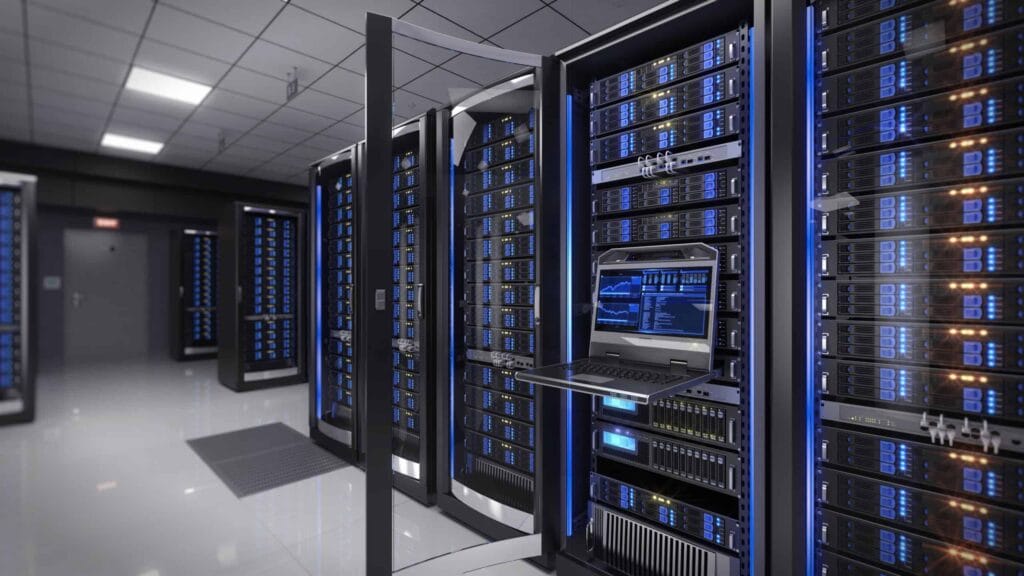
RAID stands for Redundant Array of Independent Disks. In simple terms, it is a technology that combines multiple physical hard drives in a server into a single logical unit. Depending on how that combination is configured, RAID can make your server faster, safer, or both.
The reason RAID exists is to solve two fundamental problems that every server faces. The first problem is performance. A single hard drive can only read and write data so fast. By combining multiple drives, RAID can spread the workload across them, dramatically increasing the speed at which data is accessed and stored.
The second problem is data protection. Hard drives are mechanical or electronic components, and like all hardware, they eventually fail. When a hard drive in a server dies, any data stored exclusively on that drive is gone. RAID addresses this by storing copies of data across multiple drives so that if one drive fails, the data is still safe and the server keeps running.
Different RAID levels balance these two goals differently. Some prioritize speed above everything else. Some prioritize data protection at the cost of usable storage. And some try to find a middle ground between the two. Understanding those trade-offs is the key to picking the right configuration.
The Concept of Striping, Mirroring, and Parity
Before diving into the individual RAID levels, it helps to understand three core concepts that most RAID configurations are built around: striping, mirroring, and parity. These three ideas are the building blocks of virtually every RAID setup you will encounter.
Striping is the process of splitting data into chunks and writing those chunks across multiple drives simultaneously. Because multiple drives are working at the same time, striping significantly increases both read and write speeds. However, striping alone offers no data protection. If one drive in a striped array fails, the entire array loses data because the data is spread across all drives in fragments.
Mirroring is exactly what it sounds like. Every piece of data written to one drive is simultaneously written to one or more additional drives, creating an exact mirror image. If one drive fails, the mirror drive contains a complete and identical copy of all the data, so nothing is lost. The trade-off is that mirroring uses more drives to store the same amount of data, which increases cost and reduces usable storage capacity.
Parity is a more mathematical approach to data protection. Instead of storing a full copy of the data, RAID uses a calculated value called a parity block that is derived from the data across all the drives. If one drive fails, the parity information stored on the remaining drives can be used to mathematically reconstruct the lost data. Parity is more storage-efficient than mirroring but adds some complexity and can slow down write speeds slightly.
RAID 0: Pure Speed, Zero Protection
RAID 0 is the simplest and fastest RAID configuration available. It uses striping to split data evenly across two or more drives, allowing all drives to work simultaneously on read and write operations.
The performance gains from RAID 0 are significant and noticeable. Because the workload is distributed across multiple drives, both read speeds and write speeds are dramatically faster than a single drive can achieve. For workloads that involve large amounts of data being read or written very quickly, RAID 0 delivers impressive results.
However, RAID 0 offers absolutely zero data redundancy. There is no mirroring, no parity, and no safety net of any kind. If even one drive in a RAID 0 array fails, the entire array fails and all data is lost completely. Because the data is split across drives in fragments, no single drive contains a complete copy of any file.
This makes RAID 0 a very specific tool for very specific situations. It is appropriate for servers where raw performance is the top priority and the data stored on the server can be easily replaced or rebuilt from another source. It is sometimes used for rendering servers, video editing workstations, or temporary processing environments where speed matters more than anything else and the data is either backed up elsewhere or considered disposable.
For most business applications, production websites, databases, or any server storing customer data, RAID 0 is not an appropriate choice. The risk is simply too high.
RAID 1: Simple Mirroring for Maximum Safety
RAID 1 is the most straightforward approach to data protection. It uses mirroring to write identical copies of all data to two drives simultaneously. Every single piece of data that exists on Drive 1 also exists on Drive 2 in real time.
If one drive fails, the other drive takes over immediately and the server continues running without any interruption. No data is lost, no downtime occurs, and the failed drive can be replaced and the mirror rebuilt while the server stays online. This makes RAID 1 one of the most reliable configurations available for protecting against drive failure.
The primary trade-off of RAID 1 is storage efficiency. Because every piece of data is written twice, you only get the usable storage capacity of a single drive regardless of how many drives you install. If you have two 2TB drives in a RAID 1 configuration, your total usable storage is 2TB, not 4TB. The second drive’s entire capacity is consumed by the mirror.
Read speeds in RAID 1 can actually be improved compared to a single drive because the system can read data from either drive simultaneously. However, write speeds are essentially the same as a single drive because data must be written to both drives at the same time.
RAID 1 is an excellent choice for servers where data integrity is the top priority and the data volume is manageable. It is well suited for database servers, email servers, accounting systems, and any server where losing data would be catastrophic and the total storage requirement fits comfortably within a single drive’s capacity.
RAID 5: The Balanced All-Rounder
RAID 5 is one of the most widely used RAID configurations in dedicated server environments, and for good reason. It strikes a practical balance between performance, data protection, and storage efficiency by combining striping with distributed parity.
RAID 5 requires a minimum of three drives. Data is striped across all drives for performance, but instead of keeping a full mirror copy, RAID 5 calculates and distributes parity information across all the drives in the array. This parity data is spread evenly so that no single drive holds all the parity information.
If one drive fails, the parity data on the remaining drives is used to mathematically reconstruct the lost data. The server continues running during this reconstruction process, so there is no downtime for your users. Once the failed drive is replaced, the array automatically rebuilds itself.
The storage efficiency of RAID 5 is much better than RAID 1. With RAID 5, you lose the equivalent of one drive’s worth of storage to parity, regardless of how many drives are in the array. So if you have four 2TB drives in a RAID 5 configuration, your total usable storage is 6TB rather than 8TB. That is significantly more efficient than the 50% storage loss you experience with RAID 1.
The main weakness of RAID 5 is its vulnerability during the rebuild process. When a drive fails and the array is rebuilding, all the remaining drives are under heavy stress as they work to reconstruct the lost data. During this period, the array is vulnerable. If a second drive fails before the rebuild completes, all data is lost. As hard drives have grown larger in recent years, rebuild times have grown longer, increasing this window of vulnerability.
RAID 5 is a strong choice for web servers, file servers, small business servers, and environments that need a good balance of performance and protection with efficient use of storage capacity.
RAID 6: Extra Protection for Critical Data
RAID 6 is essentially an enhanced version of RAID 5 that takes data protection one step further. Instead of distributing a single set of parity data across the array, RAID 6 calculates and stores two independent sets of parity data, which means the array can survive the simultaneous failure of two drives without losing any data.
This double parity protection makes RAID 6 significantly more resilient than RAID 5, particularly in environments where drives are large and rebuild times are long. Because RAID 6 can tolerate two drive failures at once, the risk associated with the rebuild process is dramatically reduced. Even if a second drive fails while the array is rebuilding from the first failure, your data remains intact.
The trade-offs compared to RAID 5 are modest but worth noting. RAID 6 requires a minimum of four drives instead of three, and because it stores two sets of parity data instead of one, you lose the equivalent of two drives’ worth of storage capacity. Write performance is also slightly lower than RAID 5 because calculating two sets of parity requires more processing power.
Despite these trade-offs, RAID 6 is often the preferred choice for environments where data is particularly valuable and the cost of data loss would be very high. It is well suited for large storage arrays, backup servers, financial data systems, medical record servers, and any application where the consequences of data loss justify the slightly higher cost and modestly reduced write performance.
RAID 10: The Best of Both Worlds
RAID 10, also written as RAID 1+0, is a combination of RAID 1 mirroring and RAID 0 striping. It is widely regarded as the premium RAID configuration for high-performance, mission-critical environments, and for good reason. It delivers the speed benefits of striping alongside the data protection benefits of mirroring, without the performance penalties associated with parity calculations.
To understand how RAID 10 works, picture two pairs of mirrored drives. Within each pair, the drives mirror each other for data protection. Data is then striped across the pairs for performance. This means that at any given moment, your data is being written to multiple drives simultaneously for speed, and each drive has a mirrored partner for protection.
RAID 10 can tolerate multiple drive failures as long as no two failed drives are from the same mirrored pair. In practice, this means it offers extremely strong fault tolerance in a real-world environment. And because RAID 10 uses mirroring rather than parity for protection, there is no performance-heavy parity calculation happening during reads and writes. This makes RAID 10 not just safe but genuinely fast for both read and write operations.
The obvious downside of RAID 10 is cost and storage efficiency. Because half of your drives are used for mirroring, you only get 50% of your total drive capacity as usable storage. A RAID 10 array built with four 2TB drives gives you just 4TB of usable space. To get meaningful storage capacity with RAID 10, you need to invest in more drives or larger drives, which increases the overall cost of the setup.
RAID 10 is the configuration of choice for high-traffic e-commerce stores, database servers running large and complex queries, gaming servers, VoIP servers, financial trading platforms, and any application where both performance and data protection are non-negotiable requirements.
Hardware RAID vs. Software RAID
When setting up RAID on a dedicated server, you will encounter two fundamentally different approaches to implementing it: hardware RAID and software RAID. Understanding the difference is important because it affects both performance and reliability.
Hardware RAID uses a dedicated physical component called a RAID controller card that is installed in the server. This controller handles all the processing required for RAID operations independently of the server’s main CPU. Because the RAID controller has its own dedicated processor and often its own battery-backed cache, hardware RAID delivers excellent performance and continues to protect data even during unexpected power outages.
Software RAID handles RAID operations using the server’s main operating system and CPU instead of a dedicated controller. Modern operating systems like Linux with mdadm and Windows Server with its built-in storage tools support software RAID natively. Software RAID is more flexible and less expensive since it does not require additional hardware, but it does consume some of the server’s CPU resources and may not perform as well under heavy workloads.
For most business-grade dedicated servers, hardware RAID is the recommended approach. The performance benefits and the added reliability of a dedicated controller with battery-backed cache are well worth the additional cost, particularly for high-traffic applications and database-heavy workloads.
The Role of Hot Spare Drives
Regardless of which RAID level you choose, one additional concept worth understanding is the hot spare drive. A hot spare is an extra drive installed in your server that is not actively part of the RAID array during normal operation. Instead, it sits idle and waiting, ready to automatically take over the moment another drive in the array fails.
Without a hot spare, when a drive fails in your RAID array, a human being has to notice the failure, order a replacement drive, wait for it to arrive, and then manually begin the rebuild process. Depending on how quickly the failure is detected and how fast delivery is, this could mean your array is running in a degraded and vulnerable state for hours or even days.
With a hot spare, the moment a drive failure is detected, the RAID controller automatically begins rebuilding the array using the hot spare drive. The entire process starts within seconds of the failure, without any human intervention required. This dramatically reduces the window of vulnerability and significantly improves the overall resilience of your storage system.
If your server supports it and your budget allows, adding a hot spare drive to your RAID configuration is a wise investment that provides an extra layer of automatic protection beyond what RAID itself offers.
How to Choose the Right RAID Configuration for Your Needs
Now that you understand how each RAID level works, the decision of which one to pick becomes much more straightforward. It all comes down to understanding your priorities and matching them to the right configuration.
If you are running a high-traffic website, a busy database, or any application where both speed and uptime are critical, RAID 10 is the configuration you should be looking at. Yes, it costs more in terms of drives, but the combination of performance and protection it delivers is unmatched among the standard RAID levels.
If you need a solid balance of performance, protection, and storage efficiency for a web server, file storage, or a small to medium business application, RAID 5 is a reliable and cost-effective choice that serves the majority of dedicated server use cases well.
If you are storing particularly valuable, sensitive, or large volumes of data where losing even a single file would be unacceptable, and you want the strongest possible protection against drive failure, RAID 6 is the right step up from RAID 5.
If your primary concern is simple, reliable data protection and your storage requirements are modest, RAID 1 is a straightforward, proven, and easy-to-manage solution.
And if you are running a specialized workload where maximum speed is everything and your data is either backed up elsewhere or considered non-critical, RAID 0 can be a legitimate choice, as long as you go in fully understanding the risk.
RAID Is Not a Backup Strategy
This is perhaps the most important point in this entire guide, and it is one that many server owners misunderstand. RAID is not a backup. RAID protects you against hardware failure, specifically the failure of one or more physical drives in your server. But it does not protect you against everything that can go wrong with your data.
If a virus or ransomware infects your server and corrupts or encrypts your files, RAID will faithfully replicate that corruption across all drives in the array. If you accidentally delete a critical database or overwrite an important file, RAID will mirror that deletion across every drive in real time. If your entire server is damaged in a fire, flood, or physical theft, RAID provides no protection whatsoever because all the drives are in the same physical location.
Backups stored in a separate, off-site or cloud-based location are what protect you from these scenarios. RAID and backups are two completely different layers of protection that serve different purposes and both need to be in place for a truly resilient data protection strategy.
Think of RAID as your server’s safety belt. It keeps you safe in a specific type of accident, specifically a drive failure. But it is not a substitute for having comprehensive insurance, which in this analogy is your off-site backup system. You need both to be truly protected.
Making the Final Call
Choosing the right RAID configuration for your dedicated server does not have to be overwhelming. Once you understand what each level does and what trade-offs it involves, the decision becomes a straightforward matter of matching your requirements to the right tool.
Take a moment to think honestly about your priorities. How important is raw performance to your application? How critical is your data and what would losing it cost you? How much storage do you need? And what is your budget for drives and hardware?
Answer those questions clearly, match them to the RAID levels described in this guide, and you will land on the right configuration with confidence. Your dedicated server is a significant investment in your business infrastructure. Choosing the right RAID setup is one of the most impactful decisions you can make to ensure that investment pays off reliably for years to come.


You must be logged in to post a comment.