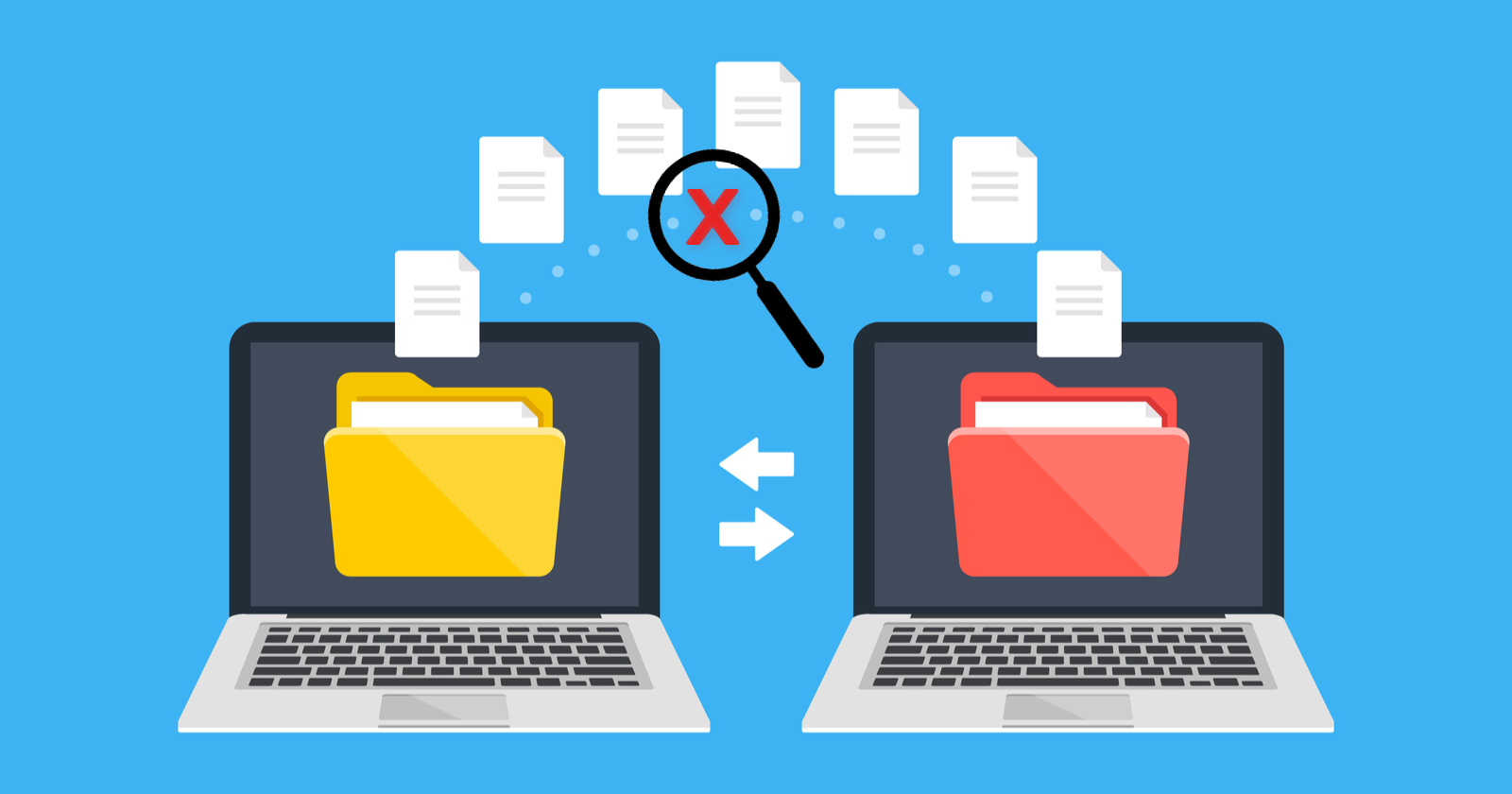
Picture this: you have spent months, maybe even years, building your website. You have created content, earned search engine rankings, built an audience, and established a brand online. Then the day comes when you need to move your website to a new hosting provider. Suddenly, a wave of anxiety hits. What if you lose your Google rankings? What if your data gets corrupted during the transfer? What if your website goes down for hours and your visitors can’t find you?
These are completely valid concerns, and you are not alone in feeling them. Website migration is one of those tasks that sounds more complicated than it actually is, but it does require careful planning and the right approach. The great news is that with the right steps in place, you can move your entire website to a new host without losing a single visitor, a single blog post, or a single position in your search engine rankings.
This guide is going to walk you through the entire process in plain, simple language so that you feel confident every step of the way.
What Is Website Migration and Why Do People Do It?
Website migration refers to the process of moving your website from one hosting provider to another, or sometimes from one domain, platform, or server environment to another. People migrate their websites for all kinds of reasons. Maybe their current host is too slow, too expensive, or unreliable. Maybe they have outgrown their current hosting plan and need more power and resources. Maybe they found a better provider with stronger customer support and better security features.
Whatever your reason is, the core goal of any website migration is the same: move everything from point A to point B without breaking anything in the process. That includes your website files, your database, your emails, your SSL certificate, and most importantly, your SEO rankings and organic traffic.
Step 1: Plan Everything Before You Touch Anything
The biggest mistake people make when migrating a website is rushing into it without a solid plan. A successful migration starts long before you even log into your new hosting account.
Start by writing down everything your website currently uses. This includes the CMS (Content Management System) your site is built on, the version of PHP it runs on, the type of database it uses, any third-party integrations, custom email addresses connected to your domain, and any specific server settings your website depends on.
Next, pick the right time to migrate. The best time to move your website is during your low-traffic hours, which are typically late at night or during the early hours of the morning. This reduces the number of visitors who might be affected if something goes temporarily wrong during the transfer.
Set a clear migration timeline with buffer days built in. Do not schedule your migration right before a product launch, a big marketing campaign, or a holiday season. Give yourself at least one to two weeks of breathing room so that if something needs to be fixed, you have time to handle it without panic.
Step 2: Back Up Your Entire Website
This step is non-negotiable. Before you move a single file, you need to create a complete backup of your entire website. And when we say complete, we mean everything.
Your backup should include all of your website files, which are typically stored in your public_html folder or its equivalent. It should also include a full export of your database, which is where all your content, user information, settings, and posts are stored. If you use a platform like WordPress, your database is the heart of your entire website. Without it, your site is just an empty shell.
You can create a backup manually by logging into your cPanel or hosting dashboard and using the backup tool provided. Alternatively, if you are using WordPress, plugins like UpdraftPlus or All-in-One WP Migration make this process incredibly simple. Just a few clicks and your entire website is saved as a compressed file that you can store locally on your computer and in a cloud storage service like Google Drive or Dropbox.
Never skip this step. Even if your migration goes perfectly, having a backup means you have a safety net if anything goes wrong after the move.
Step 3: Set Up Your New Hosting Account
Once your backup is safely stored, it is time to set up your new hosting environment. Sign up for your new hosting plan and log into your new provider’s dashboard before you transfer anything.
The first thing you want to do is make sure your new hosting environment is compatible with your website. Check that it supports the same version of PHP, the same database type (usually MySQL or MariaDB), and any other software your website requires. If your website has specific needs, contact your new host’s customer support team and confirm compatibility before you begin the migration.
Many quality hosting providers offer free website migration as part of their welcome package. This means their technical team will handle the entire transfer for you. If this option is available, take it. It removes most of the technical burden from your shoulders and gives you peace of mind that the migration is being handled by professionals.
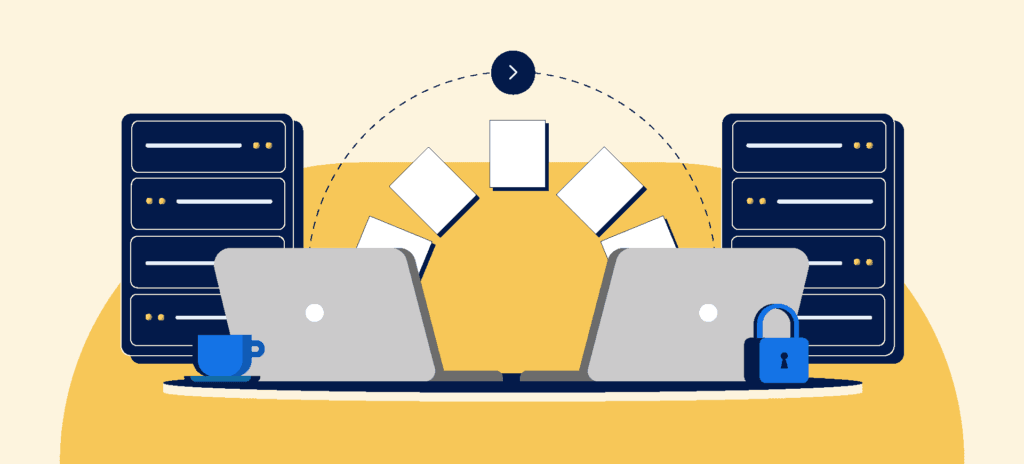
If you are doing the migration yourself, create a new hosting environment on your new server that mirrors your old one as closely as possible. Install the same CMS, set up the same database, and configure the same server settings before uploading any files.
Step 4: Transfer Your Website Files and Database
This is the core of the migration process. There are a few different ways to transfer your files depending on your technical comfort level.
The most common method is using an FTP (File Transfer Protocol) client like FileZilla. Using FTP, you can connect to both your old and new server, download all your website files from the old server, and then upload them to the new server. It is a straightforward process, but it can be time-consuming for large websites with lots of images and media files.
Another method is to use your hosting provider’s built-in file manager, which is accessible through your cPanel or dashboard. You can compress your website files into a ZIP file on your old server, download it to your computer, upload it to your new server, and then extract it there.
For your database, you will need to use a tool called phpMyAdmin, which is available in most hosting control panels. On your old server, open phpMyAdmin, select your database, and export it as a SQL file. Then log into phpMyAdmin on your new server, create a new database, and import that SQL file. Once the import is complete, you need to update your website’s configuration file to point to the new database credentials. On WordPress, this file is called wp-config.php.
Take your time during this step. Double-check that every file has been transferred and that your database import completed without errors before moving on.
Step 5: Test Your Website Before Going Live
This is one of the most important steps and one that many people skip in their eagerness to complete the migration. Before you point your domain name to your new server, you need to test your website thoroughly to make sure everything is working correctly.
The way you do this is by using a temporary URL or by editing your computer’s hosts file. Both methods allow you to preview your website on the new server without actually changing your live domain settings. Your new hosting provider can usually give you a temporary URL that points directly to your new server.
Once you can see your website on the new server, go through it carefully. Check that all your pages load correctly. Click through your navigation menus and make sure internal links work. Test any contact forms, checkout processes, or login portals that your website uses. Check that your images and media files are all displaying properly. If your website uses any third-party integrations like payment gateways, booking systems, or email marketing tools, test those as well.
If you find any broken links, missing images, or error messages during this testing phase, fix them before you go live. It is much better to discover and solve problems while your visitors are still on your old server than after the migration is complete.
Step 6: Update Your DNS Settings
Once you are satisfied that your website is working perfectly on the new server, it is time to make the switch official. This is done by updating your DNS (Domain Name System) settings to point your domain name to your new hosting server.
Your DNS settings are usually managed through your domain registrar, which is the company where you purchased your domain name. Log into your domain registrar’s account, find the DNS management section, and update your nameservers or A record to reflect the details provided by your new hosting provider.
Here is something important to understand: DNS changes do not take effect instantly. There is a period called DNS propagation, which can take anywhere from a few hours to 48 hours. During this time, some visitors will still see your old website while others will see the new one. This is completely normal and nothing to worry about.
To minimize disruption during DNS propagation, lower your TTL (Time to Live) value in your DNS settings a day or two before you make the change. A lower TTL means DNS servers around the world will update their records faster once you make the switch.
Step 7: Keep Your Old Hosting Account Active Temporarily
Do not cancel your old hosting account the moment your DNS settings are updated. Keep your old account active for at least two to four weeks after the migration is complete.
This is important for several reasons. First, during the DNS propagation period, some visitors will still be landing on your old server. Keeping it active ensures they still have a working website to visit. Second, if something goes wrong with your new hosting setup after the migration, your old account acts as a backup that you can quickly revert to. Third, you want to have enough time to monitor your new hosting environment, check your website analytics, and make sure everything is functioning correctly before you permanently close the door on your old provider.
Once you are confident that everything is running smoothly on the new server and your traffic levels have returned to normal, you can safely cancel your old hosting plan.
How to Protect Your SEO During a Website Migration
This is the part that makes most website owners nervous, and understandably so. Losing SEO rankings after a migration can feel like watching months of hard work disappear overnight. But with the right precautions, you can protect your search engine rankings throughout the entire process.
The most important thing you can do is make sure all your URLs stay exactly the same after the migration. If your old website had a page at www.yoursite.com/blog/how-to-grow-your-business, your new website needs to have that same page at the exact same address. Changing your URL structure during a migration is one of the fastest ways to lose your Google rankings.
If you do need to change any URLs, set up 301 redirects for every changed or deleted page. A 301 redirect tells search engines that a page has permanently moved to a new address, passing along most of the SEO value from the old URL to the new one. Missing even a handful of redirects can result in broken links and lost rankings.
After your migration is complete, log into Google Search Console and submit your updated sitemap. This tells Google to crawl and re-index your website on the new server as quickly as possible. Also use the URL Inspection Tool in Google Search Console to check that your key pages are being indexed correctly.
Monitor your organic traffic closely using Google Analytics for the first few weeks after the migration. A small temporary dip in traffic is normal, but if you see a significant and sustained drop, it is a sign that something went wrong and needs to be investigated immediately.
Common Mistakes to Avoid During Website Migration
Even experienced developers can make mistakes during a website migration. Knowing the most common pitfalls in advance can save you a lot of headaches.
One of the most common mistakes is not testing the website thoroughly before updating the DNS. Another frequent error is forgetting to transfer email accounts and their associated data along with the website files. If you have custom email addresses connected to your domain, make sure those are set up and working on your new host before you make any changes to your DNS.

Forgetting to renew or reinstall your SSL certificate on the new server is another mistake that can hurt both your security and your SEO. Most modern hosting providers make it easy to install a free SSL certificate through Let’s Encrypt, so this should not take long, but it is something you need to actively do rather than assume it carries over automatically.
Finally, do not forget to update any hardcoded URLs in your website’s database or theme files. Sometimes website databases store the full URL of the old server in various places. If these are not updated, they can cause broken links, missing images, and redirect loops on your new server. On WordPress, tools like Better Search Replace make it easy to find and update these hardcoded URLs across your entire database.
You’ve Got This
Website migration might seem like a big, scary process, but when you break it down into clear steps, it becomes very manageable. The key is to plan carefully, back up everything, test thoroughly, and monitor closely after the move.
Thousands of website owners successfully migrate their sites every single day. With the right preparation and a calm, methodical approach, you can be one of them. And on the other side of that migration, you will have a faster, more reliable, better-supported website that is ready to grow with your business for years to come.
Your website deserves the best possible home. Now you know exactly how to move it there safely.




You must be logged in to post a comment.